
The administration of SAP Business One access rights plays a central role. This can quickly become a challenging aspect of SAP B1 management, which is why a thorough understanding of the functions available in SAP Business One is essential. In this guide, we look at the effective organisation of user rights within SAP Business One.
General authorisations in SAP Business One

SAP Business One provides a number of functions that enable specific access rights to be customised and configured for individual user access. This not only makes it possible to define access rights for individual users, but also offers the option of transferring these settings to other user profiles. The assignment of these access rights is generally based on the SAP Business One menu options and is divided into three main levels depending on the type of authorisation:
- Full access
- Read access
- No access
By default, newly created user profiles are initially not granted access in any area, which serves as an effective security measure to prevent new users from automatically being granted unrestricted access. These basic access rights are then used to define the specific user authorisations.
Special role superuser
It is important to note that Superuser are an exception in SAP Business One. Full access rights are always displayed for them in the basic authorisation settings. These cannot be modified. The reason for this is that superusers by definition have all authorisations, including the assignment of authorisations, which makes the assignment of specific user rights superfluous.
Flexible setting of access rights in SAP Business One
In SAP Business One, access rights can also be assigned in a comprehensive way by applying them across an entire hierarchy tree. This means that it is possible to assign access rights to a user based on the name of a module (for example "PURCHASE") to assign specific rights. In this way, all associated sub-functions of the purchasing module are automatically assigned the same rights. From this point, it is then possible to individually assign different access rights to certain functions within this hierarchy tree. This procedure offers considerable time savings, especially if almost all functions within a module are to be released, with the exception of a few specific functions that are to remain restricted. In such cases, a fourth access level is practically created, namely "MIXED AUTHORISATIONS". This level reflects the situation described, but cannot be set directly.
It is also possible to search within the structure tree specifically for individual Authorisations to search. The "SEARCH" search field above the authorisation tree is available for this purpose. Please note, however, that the exact name of the authorisation you are looking for must be known for a successful search; the use of wildcards is not possible.
Authorisations also assigned for Limited
The need to assign authorisations remains, despite the restrictions that the so-called Limited licences of SAP Business One entail. These licences define limits that also apply if authorisations would theoretically grant access to functions requiring a licence. However, it is possible that the conditions of the limited licence may change and there is no guarantee that users with restricted access rights will not still be able to access certain functions.
Efficient transfer of user rights in SAP Business One
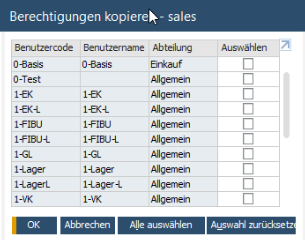
If a user already has the appropriate access rights, it is possible to transfer these settings to other users who work on similar tasks. There is a special function for this purpose below the list of user profiles. With this option, you can easily apply the selected rights of a specific user to several other users. Alternatively, this can also be done via drag & drop from the user table of the general authorisations.
Extended user rights and their monitoring
In addition to the basic access rights, which are configured as a tree structure within the authorisation overview, there are three further important authorisation settings below this overview specifically for each user. These additional settings are displayed in a clear table format. All modifications to the basic authorisations are subject to continuous monitoring and can be tracked at any time in the SAP Business One change log (under the menu item EXTRAS > CHANGE LOG).
| Authorisation | Purpose |
|---|---|
| Max. Discount - Sale | Defines the maximum discount that the corresponding user can give for the sales documents. Enter a value between 0 (no discount) and 100. |
| Max. Discount - Purchase | Defines the maximum discount that the corresponding user can give for the purchasing documents. Enter a value between 0 (no discount) and 100. |
| Max. Discount - General | Defines the maximum discount that the corresponding user can give. Enter a value between 0 (no discount) and 100. The value entered here has an effect on the following areas: Business partner master data (total discount field in the Terms of payment tab)Total discount field in the definitions of the terms of payment Discounts in the stock postings (goods receipt, goods issue and stock transfer)Discounts in the definitions of the special prices |
User groups in authorisation management with SAP Business One
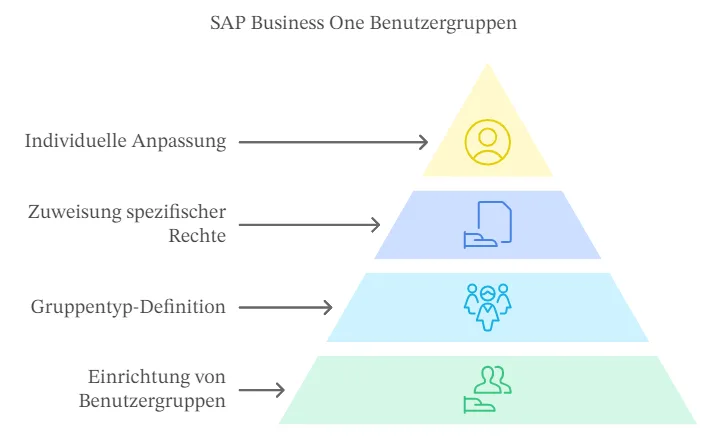
The main purpose of user groups is to collectively assign rights to users with similar areas of responsibility, although individual customisations are still possible for each user. User groups are set up via the path ADMINISTRATION > DEFINITION > GENERAL. It is important to mark the group type as either AUTHORISATION or ALL TYPES to ensure that the group is available later when assigning general authorisations. The assignment of specific rights to a user group also takes place in this area, whereby care must be taken to ensure that the GROUPS tab is selected. The familiar tree structure, which displays individual authorisations, also applies to groups. It is also possible to transfer the rights of a group to other groups, either using the COPY AUTHORISATIONS function or via drag & drop.
Effective authorisation of an SAP B1 user
It becomes particularly interesting when you analyse the permissions of a user who is a member of one or more groups and also has individual permissions. In such cases, the EFFECTIVE AUTHORISATION column on the USER tab provides valuable insights. This shows the authorisation that ultimately applies to the user, while the AUTHORISATION column only reflects the user's directly assigned rights. Due to possible differences due to group membership, the effective authorisation can be viewed in more detail by clicking further.
Highest authorisation level counts
In SAP Business One, there is no specific „Deny“ status for authorisations. Therefore, in this system, all granted authorisations, both at the individual user level and at the group level, are considered together. This means that the most comprehensive authorisation level assigned is automatically applied to the user. This procedure should be given particular attention when distributing authorisations that also build on group memberships.
Customisable access rights for extensions
SAP Business One can be functionally expanded with various extensions, such as add-ons. In order to integrate these additional functions appropriately, SAP Business One provides extended access settings. These can be found in the menu under ADMINISTRATION > SYSTEM INITIALISATION > AUTHORISATIONS. These special authorisation settings make it possible to define additional authorisations for users and user groups. This applies even if the basis of these authorisations - the extensions - are not part of the standard scope of SAP Business One.
Creation of customised authorisation hierarchies
The extended access rights in SAP Business One can be organised in a hierarchy similar to a tree structure. Using special options such as "ADD EQUAL ELEMENT" and "ADD SUBORDINATE ELEMENT", it is possible to create detailed authorisation structures that are precisely tailored to the requirements of specific extensions.
Integration of individual authorisations via form IDs
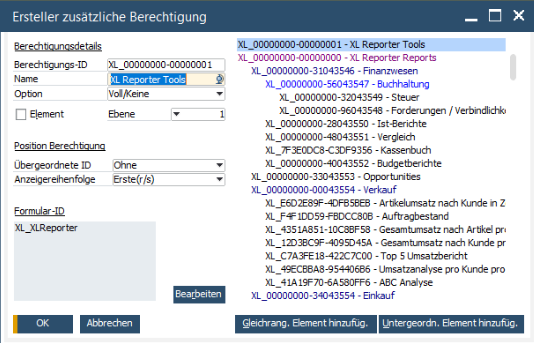
The allocation of additional access rights is always based on the assignment of a specific form ID. This must always be specified when setting up the authorisations. A crucial element in this process is the "ELEMENT" checkbox. This determines whether the entry in question represents an authorisation for an entire window or whether it is a specific authorisation element within an SAP Business One window. This can be a text box or a button, for example. This authorisation element can then be linked to one or more form IDs.
Assignment of extended access rights to users and groups
The assignment of these extended access rights to individual users or groups is handled within the general authorisations area. The overview of user authorisations appears at the end of the list of authorisations. This section lists all the authorisation elements that have been defined within the extended authorisation settings.
Access rights via SAP Business One SDK
Extended access rights can also be created via the SAP Business One SDK (Software Development Kit). This offers add-on developers the option, implement their own functionality. They can also also provide appropriate authorisation mechanisms for these functions.
Data ownership in SAP Business One
The data ownership function in SAP Business One allows you to define exactly who is considered the data owner. This function enables the assignment of data and information ownership. As a result, company data and personal information can be managed securely using preset access rights. In this way, access to data and information is reserved exclusively for users and roles with appropriate authorisations.
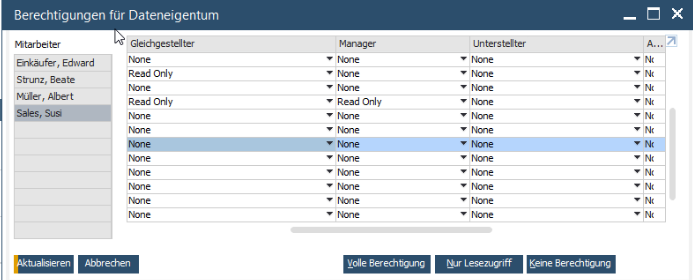
To enable the data ownership features, navigate from the SAP Business One main menu to Administration > System Initialisation > General Settings and tick „Enable Data Ownership“ on the GP tab.
Instructions for setting up data ownership:
- To define data access rights, go to the SAP Business One main menu and select Administration > System initialisation > Authorisations > Data ownership > Authorisations for data ownership.
- To establish rules for sharing data ownership with documents and business partners, select in the main menu: Administration > System initialisation > Permissions > Data ownership > Options for sharing data ownership.

MARIProject 8.0.000: New design, expanded production and optimised processes
New features in SAP Business One 10.0 FP 2508
Accruals and deferrals in SAP Business One
SAP Business One web client - additional feature or strategic step
Elster 2025 for SAP Business One
