A payment order in SAP Business One Refers to the structured and system-supported process of creating, managing and transmitting payment instructions to a bank to settle outstanding liabilities or to credit outstanding receivables.

Context and application: Payment orders are typically processed via the Payment wizards which is available at bank processing → Payment assistant can be found. Open items are analysed there, selected for payment and transferred to a payment file. This file is transmitted electronically to the bank (e.g. via telebanking).
Functional features:
- The checkbox "Payment order run" in invoice documents indicates that a payment run has taken place for the respective invoice.
- Of the payment assistant goes through seven steps, including selecting the open items and executing the payment run.
- In the final step, payments can be booked and their results saved - optionally even time-controlled on the server.
- The generated bank file is supported in EFM format without an additional add-on.
- To avoid duplicate payments, the system marks invoices that are in the payment run.
Demarcation: While a simple payment transaction can be a manual bank transfer, a Payment order In SAP Business One, this enables a continuous, electronic process chain from the selection of documents to the posting of payments.
Versino Financial Suite
the Versino Financial Suite improves the payment order in SAP Business One by automatically creating payment advice notes after the payment run and thus facilitating communication with business partners. It saves time, increases process security through functions such as automatic invoice accrual, IBAN creation and UID number validation, and optimises liquidity management through netting. With extended reports on payment behaviour and balance confirmations, the suite also ensures greater transparency and control in the payment process.
Example: A company uses the payment assistant to automatically summarise all supplier invoices due at the end of the month. After checking, the bank file is created, transferred and the payment is posted in SAP. The invoices are sent as "paid" and marked with the Bank statement compared.
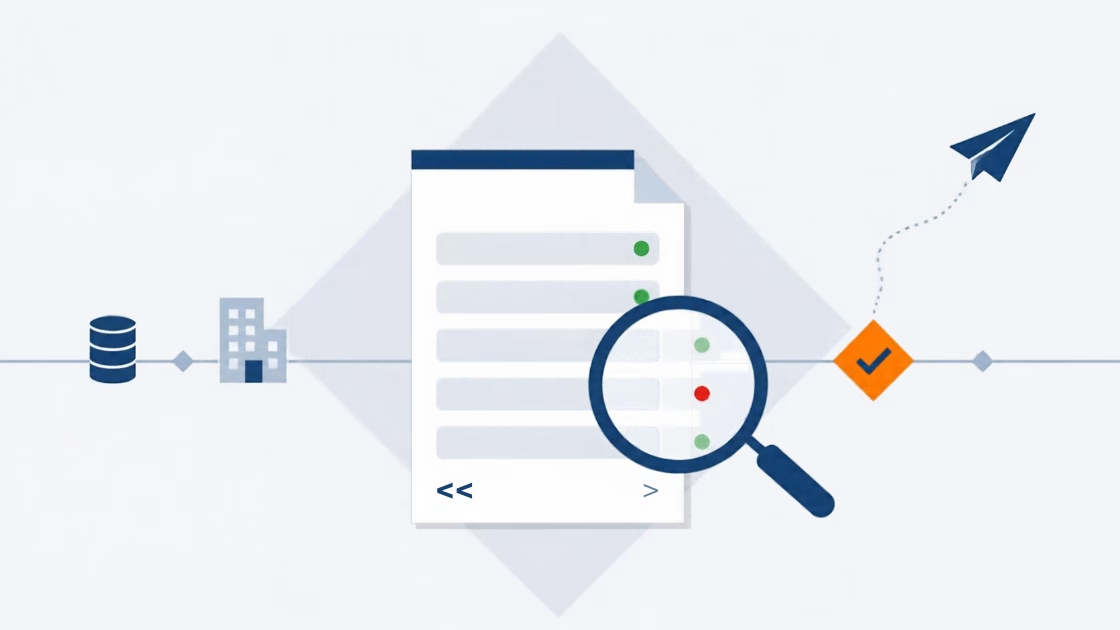
E-Invoice check by Versino Financial Suite

Versino accounting service

Cash flow planning in SAP Business One: What the Versino Financial Suite does differently

Two free webinars in July: Experience the Versino Financial Suite live
E-Invoicing 2026: What is changing now for SMEs and SAP B1 users

Netting in SAP Business One: What makes the Versino Financial Suite different

<div class="entry-meta">
<h4><span style="color: #335D85;">Categories:</span></h4>
<a href="https://sap-b1-blog.com/en/category/erp/finance/" rel="category tag">Finance</a>, <a href="https://sap-b1-blog.com/en/category/sap-business-one/" rel="category tag">SAP Business One</a>
<h4><span class="tags-links" style="color: #335D85;">Tags:</span></h4>
<a href="https://sap-b1-blog.com/en/day/accounting-2/">Accounting</a>, <a href="https://sap-b1-blog.com/en/day/accounting-3/">Accounting,</a> <a href="https://sap-b1-blog.com/en/day/financial-accounting/">financial accounting</a>, <a href="https://sap-b1-blog.com/en/day/accounting/">accounting</a>
<h4><span class="post-comments-number"><span class="post-comments-number">
<i class="fa fa-comments"></i></span></span></h4>
;
</div>