The SAP Business One Payment Assistant is an efficient tool for managing incoming and outgoing transactions relating to outstanding receivables. A prior agreement with the customer about the direct debit procedure and a corresponding update of the customer master with the necessary data are basic prerequisites for the execution of incoming payments.
Payment assistant for purchases and sales.
With the payment wizard you can Payments for invoices for both income and expenses. This function enables the efficient generation of payments by selecting payment methods and open transactions for purchases and sales.
When using the payment wizard to create payments, it is possible to make partial payments for selected transactions, just as with manual processing.
All purchase and sales transactions that have not yet been fully paid, credited or settled are included in the assistant's payment processing, including down payments that are not yet directly assigned to a transaction.
Transaction types in the SAP Business One payment wizard
The following transaction types are taken into account when using the payment wizard:
- For debtors: A/R invoices, A/R correction invoices, credit notes, sales down payments, sales down payments, advance invoices and manual journal entries that contain at least one posting line for a customer.
- Journal entries that debit a customer with positive amounts or credit him with negative amounts are treated as outgoing invoices with a positive total amount.
- journal entriesthat debit a customer with negative amounts or credit him with positive amounts are treated as outgoing credit notes with a positive total amount.
- For suppliers: Incoming invoices, incoming correction invoices, credit notes, purchase down payment requests, purchase down payment invoices, advance invoices and manual journal entries that contain at least one posting line for a supplier.
- Journal entries that credit a supplier with positive amounts or debit him with negative amounts are recognised as incoming invoices treated with a positive amount.
- Journal entries that debit a supplier with positive amounts or credit him with negative amounts are treated as incoming credit notes with a positive amount.
The payment wizard also takes into account incoming and outgoing payments that have not yet been assigned to a specific transaction or matched with one.

Use of the payment wizard for transactions
Now that we have covered the necessary basics, let's take a closer look at the payment wizard. Navigate to the payment wizard window via the bank details.
Start by clicking „Continue“, after which the assistant will guide you through the process in eight steps to create your payments:
Selection of the payment run
Decide whether you want to initiate a new payment run or retrieve a previously saved one. The „Load saved payment run“ option will present you with a list of all payment order runs for which no payment has yet been made in SAP Business One. By selecting „Display executed payment runs,“ you will see all payment runs that have already been completed. Choose the desired payment run and proceed by clicking „Next.“ You can also select „Back“ to go back one step or „Cancel“ to exit the process without saving.Selection of business partners
Select the Business partner from, whose invoices need to be settled. Use the available fields to narrow down your selection. „Add to list“ will add the desired business partners to the list. You can use criteria such as business partner number, group, and specific properties.Document parameters
Further refine the selection of vouchers from the selected business partners. Set priorities and criteria such as posting date, due date and document number to restrict the documents to be displayed.Selection of the payment method
Determine the Payment method for the transactions, based on the previously defined business partner information and invoice data.Recommendation report
Check the list of open vouchers that remain after applying the selected criteria. In the report, you have the option of excluding individual invoices or entire business partners from payment. To do this, simply uncheck the box in the first column, either for specific documents or directly for the business partner, to remove them from the payment list.
By methodically following these steps in the payment wizard, you ensure that your payments are processed efficiently and accurately, taking into account all relevant information and preferences.
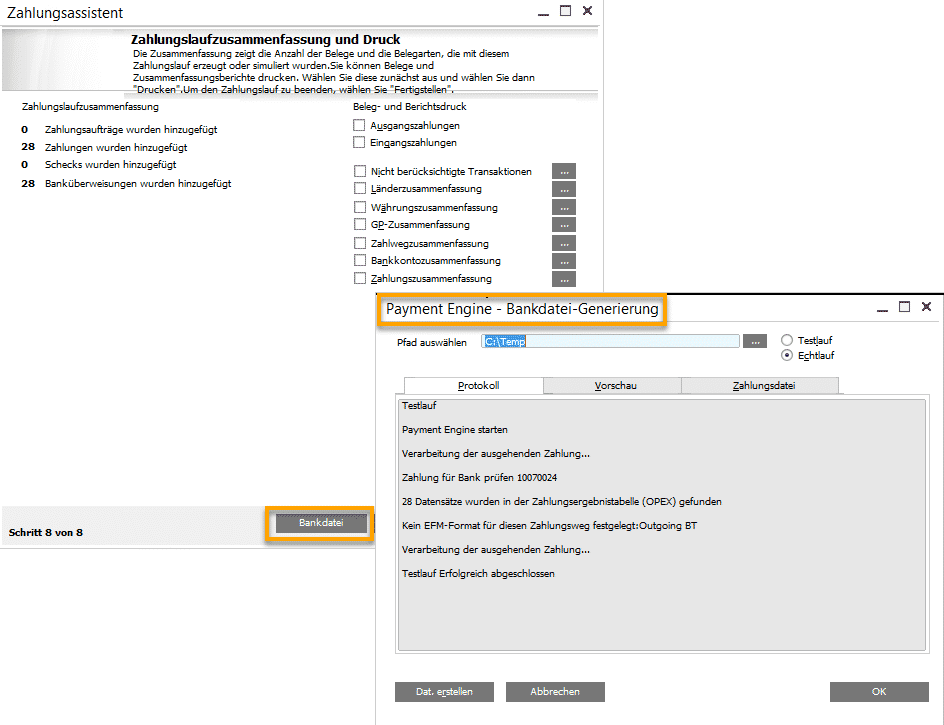
Confirmation of your payments in the SAP Business One payment wizard
Before finally confirming your payments via the „Continue“ button, the payment assistant offers you the flexibility to adjust the values in the columns for discount percentage, discount amount, and total invoice amount. Adjusting the document amount will result in a partial payment for the corresponding open invoice. If you make changes to the open items while the payment assistant is active, you can immediately update the adjustments in the assistant via the „Update“ button. You can do this without having to restart the entire payment process.
Use the „Untouched Transactions“ function to get an overview of the open documents. One possible reason for this could be, among other things, that for the document in question, there is no Payment method was determined.
Options for storage in payment management
There are various storage options for managing your payment transactions, giving you flexibility and control over the process:
Save selection criteria
This function allows you to save only the criteria for selecting business partners and vouchers without recording the recommended payments.Save recommended payments
This option allows you to save both the selection criteria and the recommended payments. This allows you to call up and complete the payment run again at a later date.Execute payment order run
This option ends the payment run without making payments immediately. It is used to implement a step at the end of the payment order in which a bank file is created with a payment add-on.Execute payment run
This option carries out the payment run and creates the payments, including the automatic posting.
These options offer different levels of flexibility and control in the payment management process. This allows you to customise the process according to your specific requirements.

Experience liquidity planning in SAP Business One live: The webinars on the new Versino Financial Suite
Financial chat for SAP Business One: How he answers questions about numbers and when he prefers not to answer
Versino Financial Suite Major Release: End of the SAP window cage
Account statement processing: What the Versino Financial Suite will offer in the future — a preview of accounting
E-Invoice check by Versino Financial Suite
