
Anyone who has two monitors on their desk also uses them. That goes without saying.
In the desktop client of SAP Business One, it doesn’t always happen automatically. The windows open within the main frame of the client. If you want to place the open orders list on screen 2 next to the booking form, you look for a way and often only find dead ends. The main frame becomes a „cage,“ with bars made of window trim.
The Versino Financial Suite Major Release will be released on November 16th
On November 16, 2026, we will release a new version of Versino Financial Suite. It's a major release because we've redesigned all the surfaces of the suite. Every window gets the new look. This is a complete redesign, and the biggest benefit is at the top right in the header.
One window, three modes: Your desk determines the workflow
At the top right of each window there are three small symbols. From left to right, these are a window in a window, a monitor, and an arrow from a box. With them, you decide where the window runs:
- In the SAP window: The window remains within SAP Business One, as you are used to.
- As a separate window: The window is detached from the main frame and stands on its own. The open orders list can then be displayed on screen 2, while the booking form remains on screen 1.
- In the browser: The window opens in the default browser on your own computer. There are limitations there, for example, no file export.
The suite remembers your choice, for each window or for all your windows. It is not the mask that determines your workflow, but your desktop.
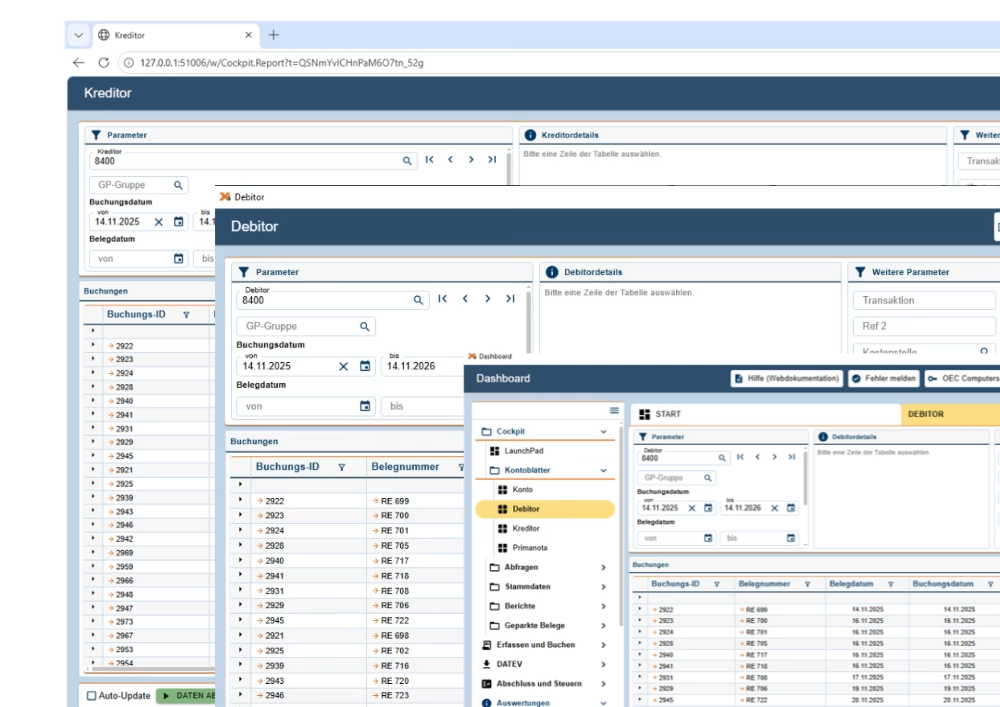
Browser window / Windows desktop window / SAP client window
A dashboard as a home page
The entry point is a dashboard. The Versino Financial Suite Dashboard groups the functions into five groups and displays them as tiles: Capture and Booking, DATEV, Finalization and Taxes, Analytics, and Settings.
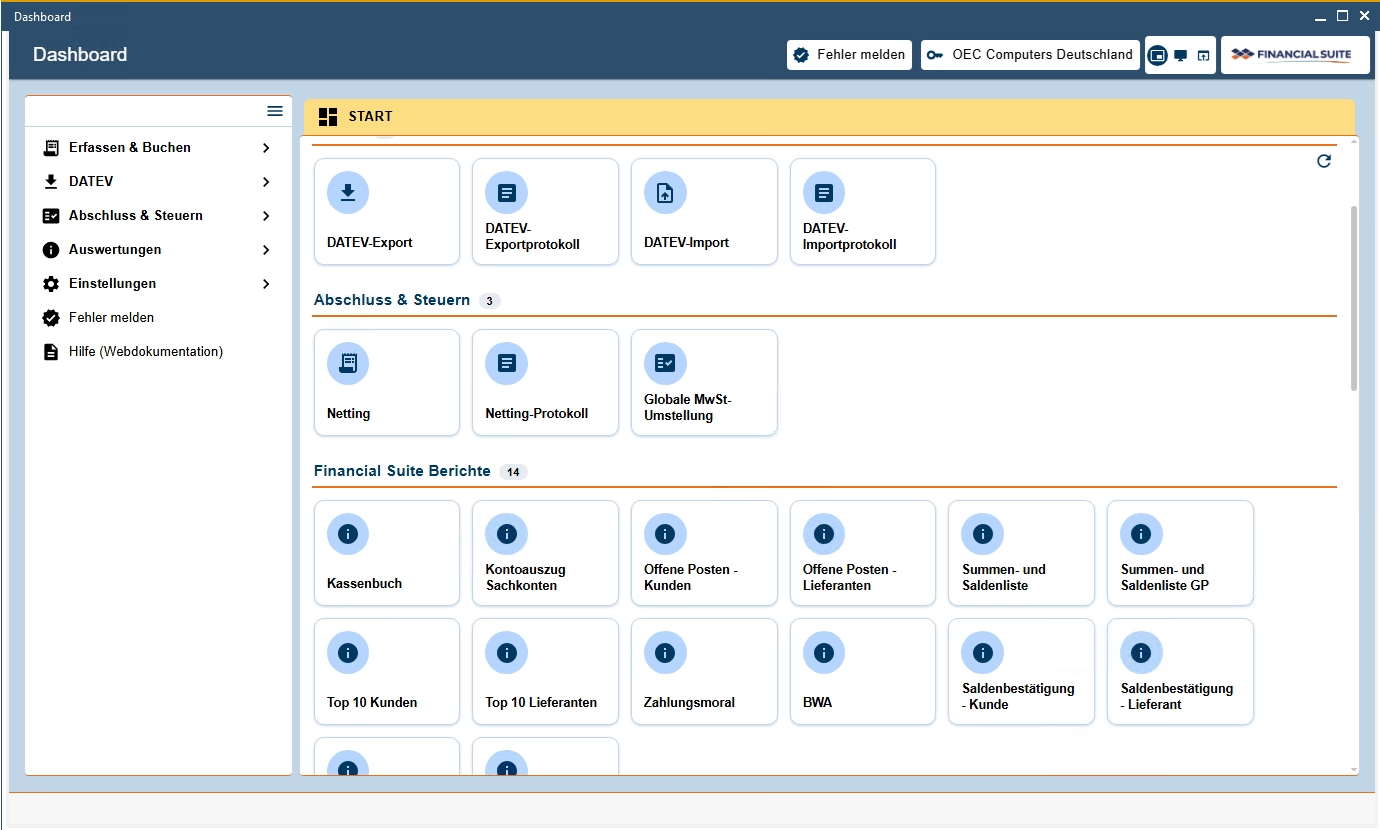
Open functions are displayed as tabs next to the start page. Each tab again has the three symbols. They collect windows in the dashboard as tabs and then unhide them. From there, you can also switch the client without the Business One client having to switch its client.
The menu of the suite appears in the menu of SAP Business One and in the dashboard. Entries for which you do not have the right to edit are hidden. The rights are granted by the superuser. In the lists, sort and filter by data columns; in addition, there is a quick search where the window offers them.
Under the hood: The bridge to the SAP Business One web client
The new windows are built using web technology. They consist of HTML interfaces instead of classic SAP masks. In the SAP window and in the own window, this technology runs in an embedded browser. The view in the browser uses the same technology.
This is not a cosmetic detail. The new interface lays the foundation and forms the bridge to the SAP Business One Web Client, which will set the tone in the future. Today, the suite continues to be launched from the SAP Business One desktop client. You do not need to leave your usual environment for this. This lays the foundation for operation in the Web Client.
One surface for all functions
The benefit of unification is simple: What you learned in one window is found again in the next, for example the same three symbols. This affects the entire function list of the suite.
- Capture and Book: Faster receipt of incoming invoices, journal text rules for booking texts, e-invoice check, account statement processing, and travel expense billing.
- DATEV: Export and import, with a log of each, plus the BU assignment when importing.
- Closing and taxes: Netting, the global VAT conversion and the OSS procedure.
- Reports: fourteen reports, ranging from the cash register to the balance sheet and the BWA, to the payment notice.
- Settings: DATEV, reports, exchange rates with import, pro-rates and VAT ID number verification.
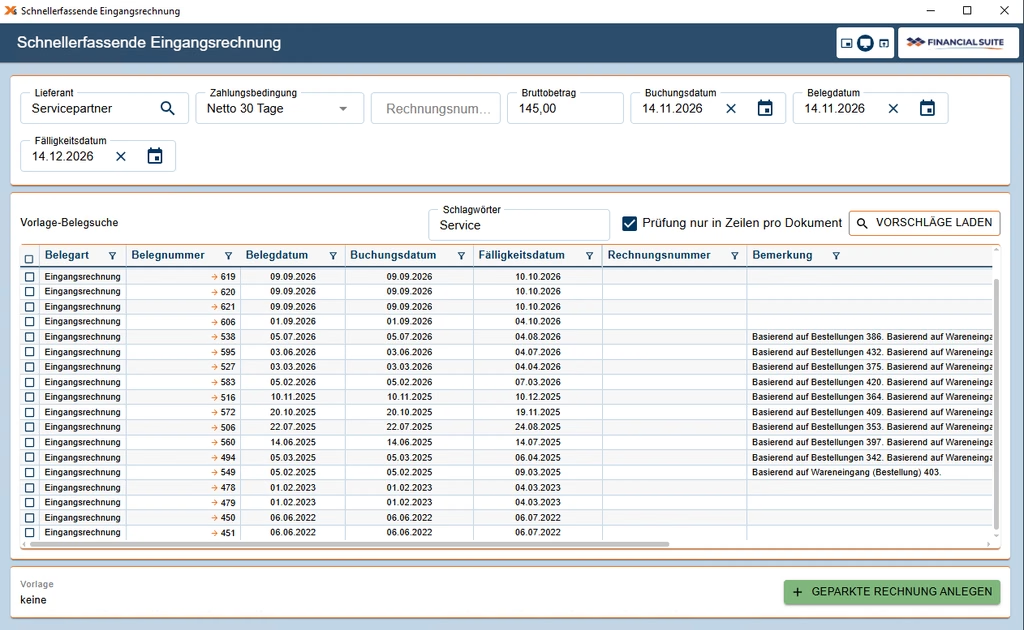
Quick check of the input invoice
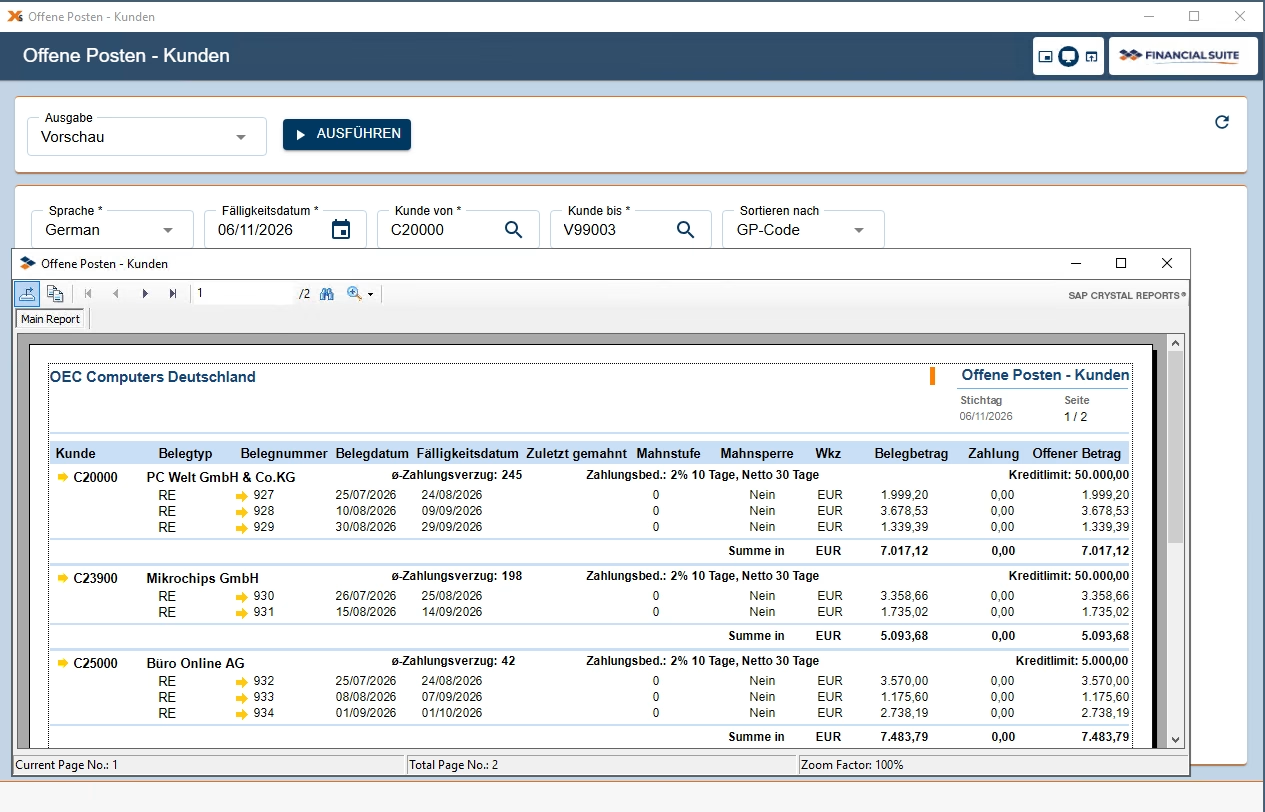
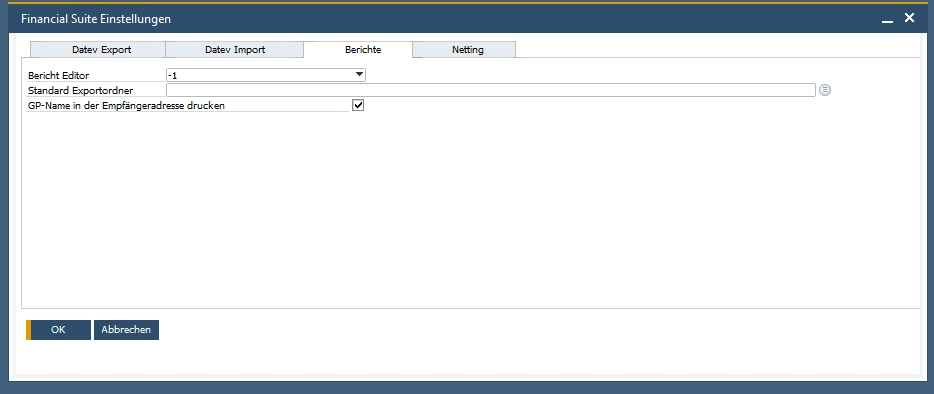
An example of the gain in clarity is the settings. Until now, they were located on four tabs in a classic SAP window: DATEV Export, DATEV Import, Reports, and Netting. Now they are located on one page without any tabs, with the sections DATEV Client, Reports, Netting, and VAT ID Number Check.
Adaptable without programming
The new windows can be customized without having to program anything. This is handled by Superusers, the administrators of SAP Business One. They can change colors, fonts, sizes, and icons, selectively for a single client or for all clients on the server. A click restores the delivered design. A color catalog shows which color is used where.
The texts are also included. Labels and messages replace Superuser with their own wording, depending on the language, and they reset each text individually. Design and custom texts can be exported as a file, imported from a file, or copied directly to another client. Those who manage multiple clients can set the appearance once only.
Who it's worth it for
Most users are most satisfied with multi-monitor setups because their windows are finally where they are needed. Likewise, accounting departments process daily bookings, reports, and DATEV transfers, and administrators want to customize the suite's appearance themselves instead of commissioning an external customization service.
On November 16th, it will be time. Check by then which windows your accounting department keeps open all day, and then place them where they belong. A frame is useful as long as you decide for yourself whether to stay in it.

Versino Financial Suite Major Release: End of the SAP window cage
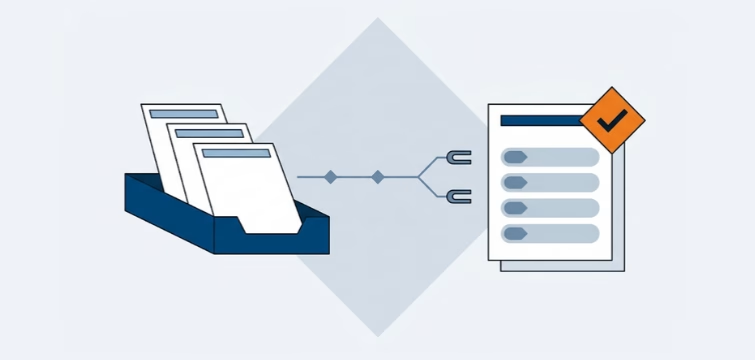
Account statement processing: What the Versino Financial Suite will offer in the future — a preview of accounting
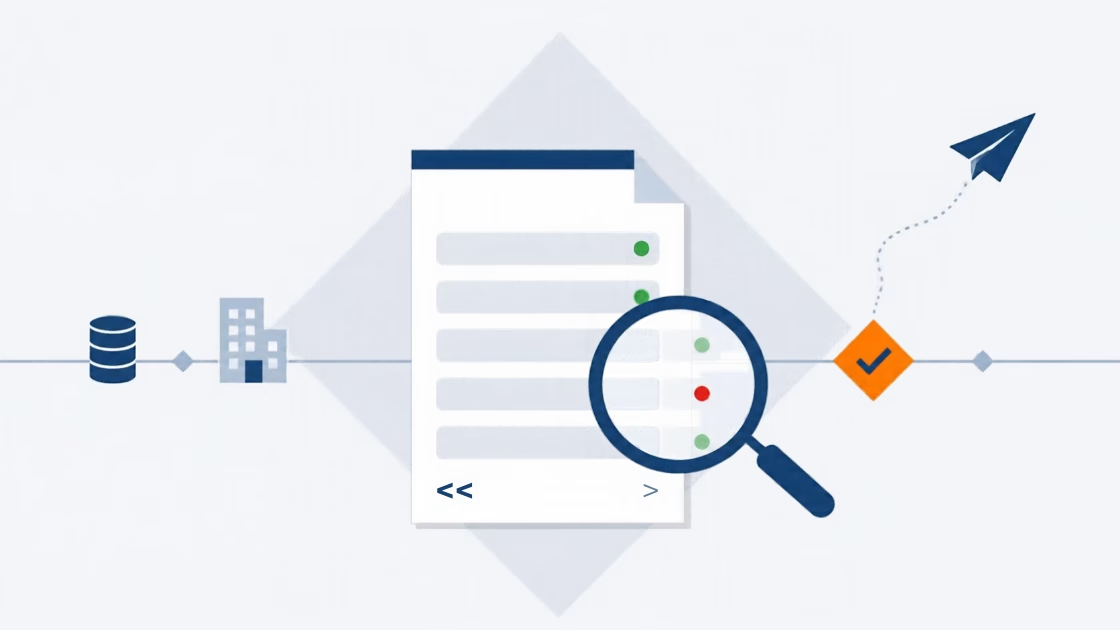
E-Invoice check by Versino Financial Suite

Cash flow planning in SAP Business One: What the Versino Financial Suite does differently

Netting in SAP Business One: What makes the Versino Financial Suite different

Trial Balance in SAP Business One: What the Versino Financial Suite does differently – and why tax advisors notice

Versino Financial Suite V09.2025 for SAP Business One