
After the work on New Year in SAP Business One have been completed, MARIProject users still have to execute a few routines in the extension to SAP ERP. As the second part of our short series, here are the instructions for the turn of the year in MARIProject.
Creating new periods/fiscal years in MariProject
In MariProject, only the periods of the current financial year are initially available for project planning and implementation. If you also want to use the periods for the coming business year you must first create it.
Select Project management > Basics > Time management > Financial year open.
You will get the following dialog:

MARIProject New financial yearThe date has already been specified. The default is based on the start of the current financial year. You can overwrite the date.
A notice:
With the opening of the posting period In SAP Business One, the financial year is not automatically created in MariProject. You must set this manually in MariProject.
click on Continue.

Blocking of posting periods in MARIProject
By closing the period, you mark a period as unbookable. Your employees can then no longer record any hours for this period.
If, among other things, you regularly carry out a posting run for transfer to the financial accounting it makes sense to block the period immediately afterwards. This prevents further hourly postings from being recorded, which may then not be taken into account for export to financial accounting.
You can only block a period if all previous periods are also blocked.
Select Basics > Time Management > Period Closing. You will get the following dialog:

Lock MARIProject periodBlock posting period:
Select the desired period in the selection list. The list contains all periods with the corresponding lock status.
click on OK. The period is now blocked.
Unlock period:
Similarly, you can unblock a previously blocked period in controlled situations, for example if you still need to make up time bookings and then carry out a new booking run.
To do this, select the desired period in the selection list.
Then click Unlock period.
➔ The period is now bookable again.
Set hourly recording lock:
If you want to prevent the recording of hours for certain periods, enter the periods for the corresponding business areas.
Entry of leave entitlement in MariProject
Among Project management > Basics > Time management > Entry of leave entitlement it is possible to enter the new value for a new financial year for all or selected employees:

MARIProject Recording holiday entitlementcalendar year
First select a calendar year for which the new values are to be entered.
employees
Then select several or all employees to be displayed in the search mask via Multiselect. The selected employees are displayed in the table view.
Select to change
Now select the employees for whom the change is to be entered.
By clicking on Save, the values are written to the employee master data.
Alternatively, you can right-click to select all employees and enter the values (Rest of previous year, new claim etc.) for all employees.
Overtime start values
In MariProject, overtime is calculated on the basis of the calendars, the overtime start values for the employees and the hours recorded by the employees.
Define under Basics > Settings > Tenant > Basics Come and go, how you want to calculate the overtime. You can choose between the options Planned working time vs. KG hours and Planned working time vs. project hours.
MariProject allows 3 variants for entering overtime start values:
Version 1:
If overtime calculation takes place as „Target working time vs. project hours“, then the overtime starting value in the employee master data in the register Organization > Employee Type be entered.
Variant 2:
It is possible to enter the overtime start values on any day per employee. This is mainly useful for weekly and fortnightly pay. The Overtime clocking in and out tab exists in the employee master data for this purpose. The overtime start values via the organization is no longer possible if the overtime is calculated using the clock-in and clock-out times, i.e. the option Planned working time vs.

MARIProject employee baseThe overtime start values can be entered not only on a monthly basis, but also on a daily basis.
Variant 3:
You can check the starting values for overtime and the planned working time centrally and change them if necessary.
To do this, select Project management > Basics > Time management > Overtime start values.
You will get the following dialog:
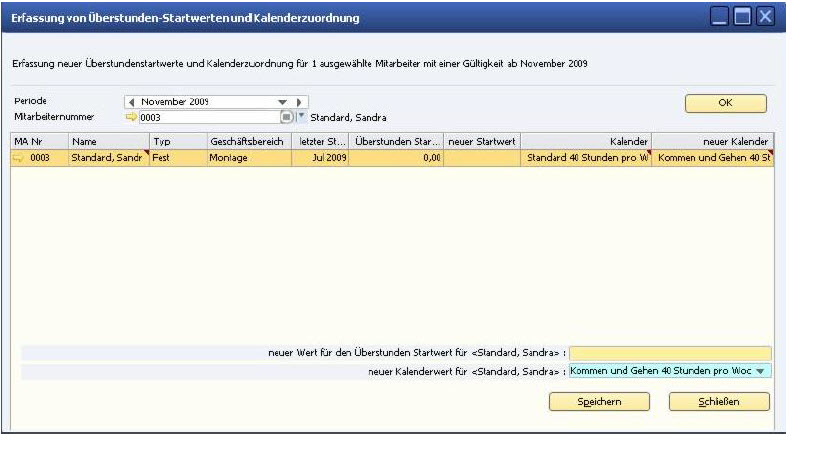
MARIProject OvertimeSelect the period for which you want to view and record overtime. A list of employees with planned working time and overtime start value is displayed. Select the corresponding entry in the list if you want to change the overtime start value or the planned working time.
Then enter the new value in the bottom line. Then press Save on computer.
Update overtime:
If an employee's planned working time has been changed, the employee's planned values are recreated for the selected period. The planned working times entered are assigned to the period. In this case, you must recalculate the overtime update.
To do this, click on Update overtime.
Confirm the question if all updated amounts are to be recalculated and close the dialogue.
Extension of maintenance contracts
If maintenance contracts exist, these should also be checked at the turn of the year and the end date of the contracts extended if necessary. Maintenance contracts are often created with an end date of 31 December of the current year and must then be extended by one year at the turn of the year.
Please note that this wizard only extends the contracts by one year, starting from the end date of the maintenance items. It is currently not possible to define different contract-specific terms.
ProjectManagement → Support Desk → Index customisation of maintenance contracts:

MARIProject maintenance contractsEnter either the booking period as the end date for the maintenance contracts (see above) or the date as the end of maintenance.
This wizard extends all maintenance contracts that end in the selected month (or date). Optionally, the maintenance prices can be adjusted using the SAP Business One price index (Administration → Exchange rates and indices) are also adjusted with the extension of the deadline. Usually, maintenance prices do not change at the turn of the year, so the index for the corresponding booking period (in this example December 2011) is set to 1 (so that no price adjustment takes place).
You can also use this wizard to extend fixed price items that are billed periodically by a further year.
It is therefore important to note that the index for the relevant period must be entered in SAP Business One in Exchange rates and indices before the wizard is run.
We also recommend backing up the Database. If you are not satisfied with the result and/or have selected the wrong contracts, you can restore the backup. To ensure that no further data is lost, nobody should work with MariProject during this process.

MARIProject 8.0.000: New design, expanded production and optimised processes
MariProject / Tool for e-invoicing
MARIProject 7.5 : What's new?
MARIProject - Version 7.3.000
MARIProject - Version 7.2.000
