
Every year, it's time for the turn of the year in SAP Business One. Everything you do only once a year is of course little practiced. That's why we've put together a small series on year-end closing in SAP Business One. Without claiming to be complete, it should be a little support for the rare routine year-end closing in SAP Business One.
This article was updated 12/19/2020
1. posting periods at the turn of the year in SAP Business One
Please remember to start the new financial year (i.e. new Posting periods) in good time.
You can find the booking periods in:
Administration → System initialization → Posting periods
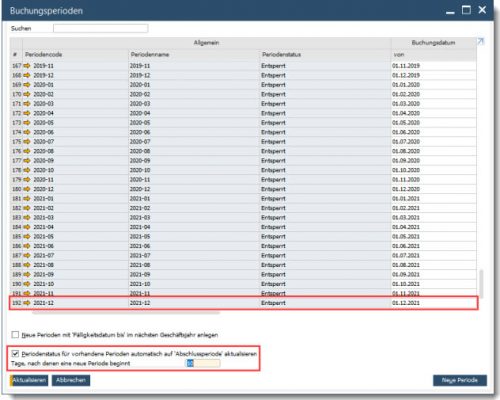
SAP Business One posting periodsNote: please remember to set the due date of the new periods in the future, depending on your payment terms beyond the new year. Otherwise, SAP Business One will not be able to determine net due dates of invoices beyond the current year. In new versions of SAP Business One, you can use the "create new periods with due date until next fiscal year" option for this purpose:

SAP Business One "New Period...If your version of SAP Business One does not include this feature yet, please enter the "Due date by" manually when creating new periods - see further steps.
To create new periods click on the button "new period". After that the following window will appear:
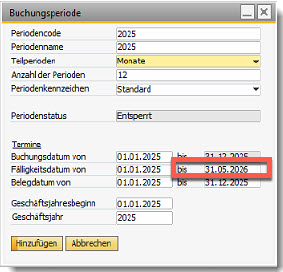
SAP Business One "New Period" 2periodic code
Enter a code for the posting period. This code can be up to 20 characters long.
period name
Enter a name for the posting period. This name can be up to 20 characters long. The name of the period that includes the current date is displayed at the top of the Main Menu window.
Sub-periods / number of periods
Shows the number of booking periods corresponding to the one in the field „Subperiods“selected entry. This field is only active if in the field „Subperiods“the value days were selected.
period indicators
The period indicator refers to each document series (row) that can be linked to one or more posting periods. Each document series must be linked to an indicator in order to activate document numbering for each fiscal year, starting at 1.
Select the period indicator to link it to the accounting period. The period indicator can also be linked to several periods in the same company.
posting date from... to ...
Specify the posting period for the new period. Suggested in the Posting date from... field is the day after the end date of the last existing posting period and in the To... field the same day one year later.
due date from... to ...
Specify the due period for the new period. The due period can be longer than the posting period.
document date from ... to ...
Specify the voucher period for the new period. The voucher period can be longer than the posting period.
start of fiscal year
Specify the start date of the fiscal year to which the period belongs.
business year
Specify the start date of the fiscal year to which the period belongs.

2. blocking posting periods in SAP Business One
To avoid misunderstandings:
There is no month-end closing run or similar in SAP Business One.
There is a period-end closing, but it is performed purely at the fiscal year change for the year-end closing.
As mentioned, there are no month-end closing transactions in SAP B1 and they are not necessary, so you should definitely refrain from using them, ending balances of the accounts at the end of the month as a carryover to the new month! The balances are presented automatically.

Nevertheless, it may be necessary to make adjustment postings at the end of the month for the (flat-rate) stock value correction or other corrections. However, these are normal journal entries that must be created manually if necessary.
At the latest with the printout of the monthly income statement However, you should „close off“ the system so that no employee can subsequently book anything into this closed month without your knowledge.
And that's exactly what every posting period (= month) the two fields "active" and "blocked"
- Call via "Administration >System initialization >all settings >Posting period> orange arrow of the desired period".
- Assign the required status to the posting period:
„Unlocked“- all users can book all types of transactions and documents in this period according to their permissions. This status is assigned to new booking periods by default.
„Unblocked except sale“– all users can book all types of transactions and documents, with the exception of documents in the Sales module, in this period according to their authorisations. Assign this status after the period has expired if there are still purchase documents, such as late incoming invoices, and other transactions open that need to be booked for this period.
„Period-end closing“- only users with full period-end closing authorisation can post all types of transactions and documents in this period. Assign periods this status when the period has ended, all late transactions have been posted and only the annual closing process remains.
„Locked“– in this period, neither documents nor transactions can be posted. Assign this status to the period after all adjustments have been posted and the financial closing process for this period is complete.
E-Invoice check by Versino Financial Suite

Versino accounting service

Cash flow planning in SAP Business One: What the Versino Financial Suite does differently

Two free webinars in July: Experience the Versino Financial Suite live
E-Invoicing 2026: What is changing now for SMEs and SAP B1 users